
We’re pleased to share that iCalendar (.ics) invites for the 2026 University Holidays have been created and are now available for download. These calendar files make it easy to add official holidays to your Outlook calendar that show as “Out of Office” or “Busy” with just a few clicks—helping you plan ahead and stay organized throughout the year.
How to Use
- Download the iCalendar file found on the Holiday Schedule page on the HRS Website
- You can select between two versions: one that will show all Holiday’s as “Out of Office” and another as “Busy”
- You can select between two versions: one that will show all Holiday’s as “Out of Office” and another as “Busy”
- Open the file, and import it to your Outlook calendar with the 2026 holiday dates.
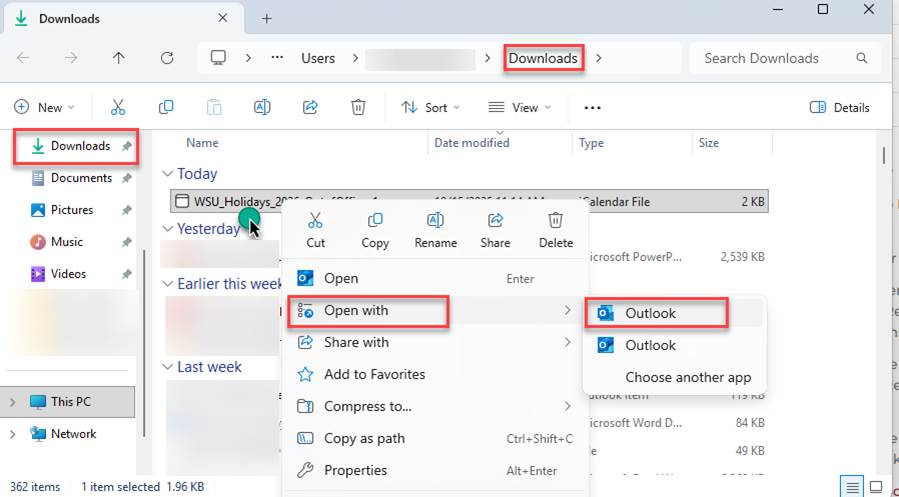
- If you are using Outlook Classic, find the file in your downloads folder, right click and select “Open with” to select the Outlook Classic version (see below)
- If you are using Outlook Classic, find the file in your downloads folder, right click and select “Open with” to select the Outlook Classic version (see below)
- Review the events to ensure they’re added correctly
If you have any questions or need assistance, feel free to reach out to Emily Goodwin at Emily.goodwin@wsu.edu.
Content Credit: Emily Goodwin, Modernization Initiative Change Management Communications Coordinator