Follow these instructions to apply for open positions if you are not currently paid by WSU. This includes all general applicants as well as WSU academic affiliates and contingent workers not paid by WSU.
You must have a WSU Jobs account to apply for open positions with Washington State University (WSU). This page provides instructions on how to create and manage your WSU Jobs account.
Current employees should refer to the Apply for Internal Posting Workday reference guide.
Create a WSU Jobs Account
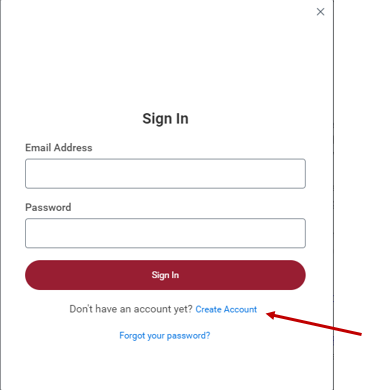
- On the WSU Jobs site, select Sign In, and then choose the Create Account link beneath the Sign In button.
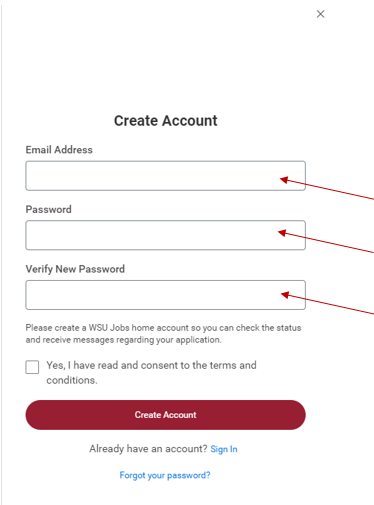
- Fill in the required fields and select Create Account.
- You are now able to search for open positions at WSU!
Apply for Open Positions in WSU Jobs
- From the WSU Jobs site you can search for open positions.
- In the sidebar you may filter your search results by:
- Department
- Employee type
- Work location
- Full/part-time status.
- Select the blue hyperlinked open position you are interested in applying for from the search results, then select Apply and begin your application.
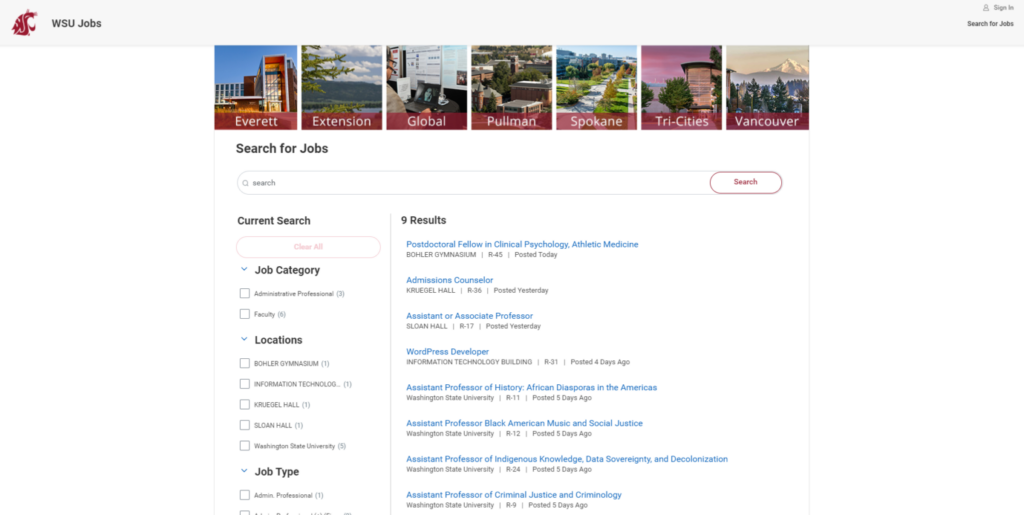
You can return to the main search page at any time by selecting the Search for Jobs link at the top of the webpage.
Edit a Submitted Job Application
After submitting an application for an open position in WSU Jobs, there is no ability to edit your submitted application. Please make sure all information is up to date and accurate before submitting.
Contact HRS for any specific questions.
Withdraw a Job Application
This action will withdraw your application from consideration and will not allow you to resubmit without contacting HRS.
- Log into your WSU Jobs Account
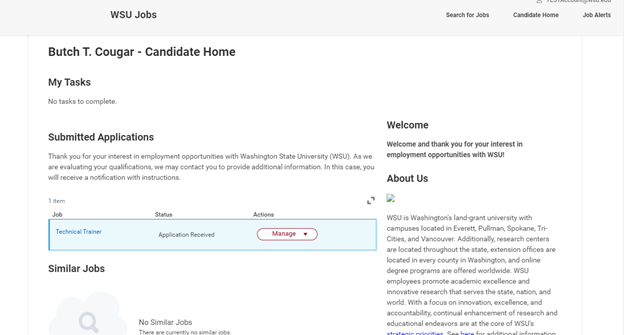
- Choose Candidate Home in the upper right hand corner of the screen.
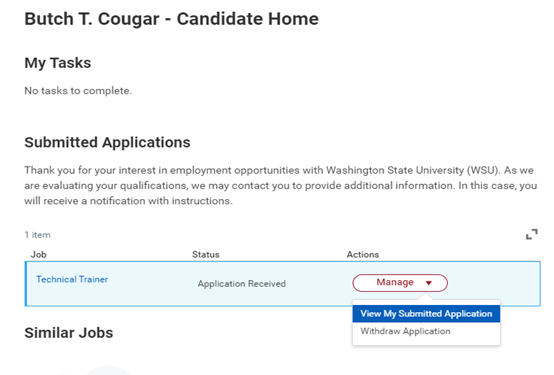
- Under Submitted Applications, select the Manage dropdown menu for the application you wish to withdraw.
- Select Withdraw Application.
Add and Manage Job Alerts
You must be signed into your account to create or edit a job alert.
Add a Job Alert
- To add a Job Alert from WSU Employment select the Job Alerts tab in the upper right-hand corner on the WSU Job homepage.
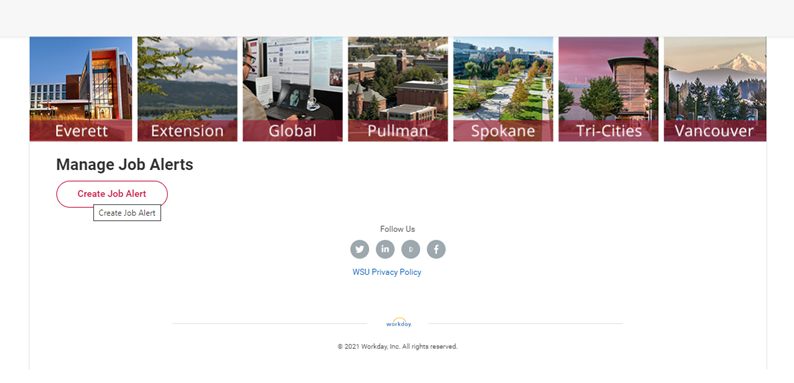
- On the Job Alerts page, select the Create Job Alert button.
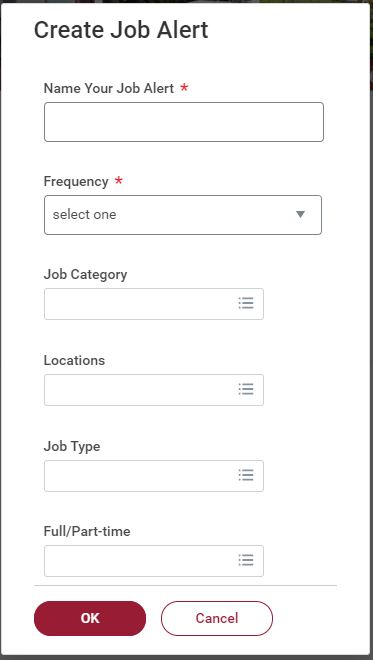
- Fill in the required fields in the Create Job Alert form along with any optional fields.
- Name Your Job Alert: Enter a nickname for your job alert. For example: “Office Work.”
- Frequency allows you to select how often you would like to be notified.
- Select the OK button to save your job alert.
- Job Category allows you to choose different employment types, such as Faculty, Administrative Professional, or Student.
- Location allows you to specify a region..
- Job Type allows you to choose the status of employment. Note: “Fixed Term” means temporary employment (employment with an anticipated end date).
- Full/Part-time allows you to choose full time or part time employment options.
Edit or Delete a Job Alert
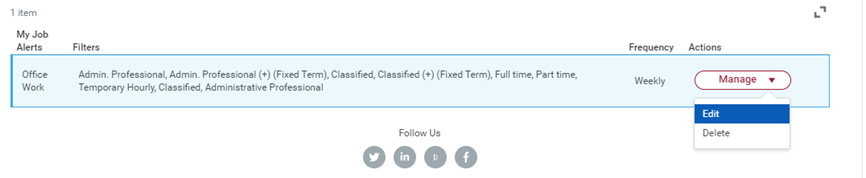
To edit or delete your job alerts select the “Manage” tab on the Job Alerts page and choose “Edit” or “Delete” from the drop down menu.